
Outlook is a Developed by Microsoft and It is also a Part of Microsoft365. Outlook helps to manage Personal Information and manage your Calender and other information like contacts Etc .Its is also Used as a Email client One of Section in Outlook App Manage Your Mails . In Outlook App You can Add Any Email Account Like Google ,Yahoo , zoho or Any Other Account By Configuring On Outlook Mobile App Or Windows App.
Outlook Also Helps You to Manage Multiple Email Accounts in Single Outlook Apps Its is Also Save Your Time , Space and Slow down Your Devices like Mobile , Tablets and Computer & Laptops .
Table of Contents
Configuring Email on Outlook Mobile App (iOS and Android)
The Outlook mobile app is free to download on iOS and Android devices and the setup process is very much the same on both platforms.
Now Follow These Easy Steps To Setup the Email Account On Outlook App
Step 1: Download and Install Outlook App
- Go to the Apple App Store or Google Play Store.
- Search for Microsoft Outlook and download the app.
- Open the app once installed.
Step 2: Add Your Email Account
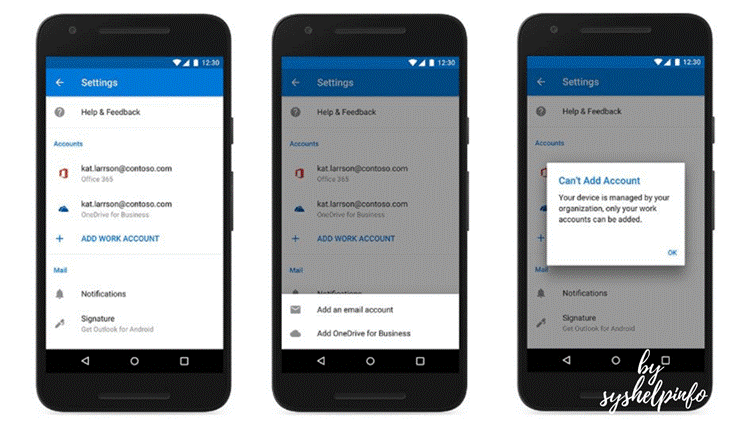
- When you open Outlook for the first time, you will see a welcome screen. Tap Get Started.
- Enter your email address in the field provided and tap Continue.
- Outlook will try to detect your email provider automatically. If your email provider is listed (like Gmail, Yahoo, Outlook.com), just follow the prompts to enter your password and sign in.
- If your email provider is not listed, select IMAP or POP to manually enter your server settings (you may need to get these from your email provider).
- If multi-factor authentication is enabled, follow the on-screen steps to verify your identity.
- Once authenticated, tap Done to finish setup.
Step 3: Add Additional Accounts (Optional)
- To add more email accounts, tap the Menu icon (usually three horizontal lines) in the top left corner.
- Tap your account icon or name, then tap the + (plus) sign to add another account.
- Repeat the steps above to add more accounts.
Tip: You can easily switch between multiple accounts by tapping the account icon in the menu and selecting the inbox you want to view.
Setting Up Email on Outlook Desktop App (Windows)
If you open and use Outlook on your Windows desktop (Outlook 2016, 2019, 2021 or Microsoft 365), do the following.
Step 1. Get started with Office 365 Outlook
- Open your Outlook application on your desktop.
Step 2: Navigate to Account Setup
- Select Share in place of where it says File in the top left corner.
- Select Add Account to get started..
Step 3: Enter Your Email Address
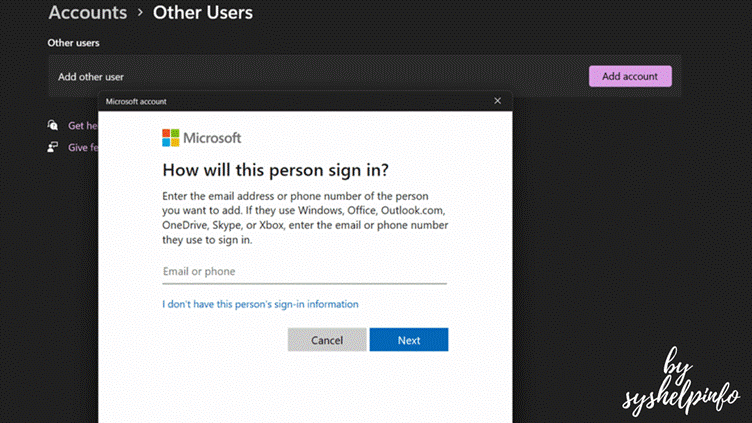
- Type your full email address and click Connect.
Step 4: Enter Your Password
- If you are asked for your email password, enter it and click OK or Connect.
Step 5: Automatic Setup or Manual Setup
- Outlook will do its best to set your account up automatically. If it does, you’ll land on a success screen that looks like this. Click Finish.
- In the case where automatic setup doesn’t work, you’ll be given the option to select IMAP or POP. Select IMAP so that your emails sync between devices.
- Enter the incoming and outgoing mail server settings manually when necessary (e.g., incoming server: imap.yourdomain.com, port 993 with SSL; outgoing server: smtp.yourdomain.com, port 465 with SSL).
Step 6: More Settings (Optional but Recommended)
- Go back to File > Account Settings > Improved Account Settings.
- Choose your email account and click on Change to see or modify account server settings.
- If prompted, set the Root folder path (default is “Inbox”).
- Click to save changes and close the settings window.
Step 7: Test Your Account
- Test it out by sending yourself a test email to make sure it all looks good.
Setting up a New Outlook Email Account (If You Do Not Already Have One)
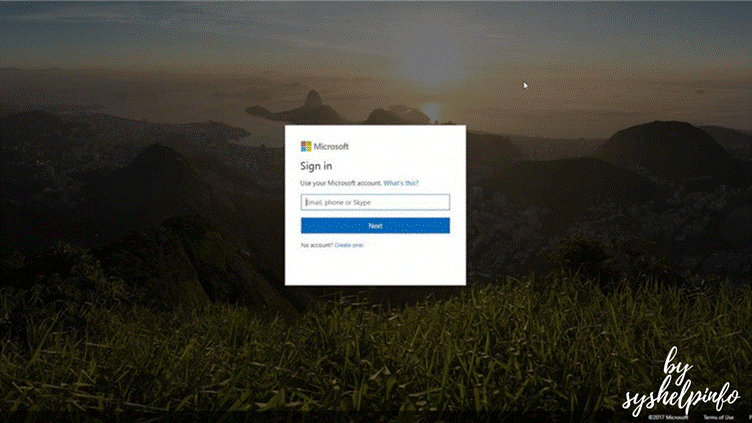
Setting up an Outlook email account is very simple.
- See the Outlook.com Join Us site.
- To proceed, click on Create Account.
- Fill in your personal info such as full name, preferred email address, password, birthday, and phone number.
- Please complete the CAPTCHA verification step to accessing this form.
- Your new email address will be created and ready for use in Outlook.
Once you’ve registered your account, you can add it to your Outlook app via these steps above.
Best Practices for New Outlook Email Configuration
- Move from POP to IMAP email services so your email history is synced and searchable everywhere.
- Have your password ready. You’ll need to have it available to authenticate your account when setting up the integration.
- Protect your account with two-step verification Outlook now works with multi-factor authentication, providing an extra layer of security to your account.
- Backup your important emails Before implementing big changes or transitioning to a new account, backup messages to prevent losing valuable information.
- When automatic setup doesn’t work, check the incoming and outgoing server information with your email provider.
- Update Outlook app – Ensure you have the latest Microsoft Outlook app installed to get the latest features, performance improvements and security fixes.
Common Issues and Troubleshooting
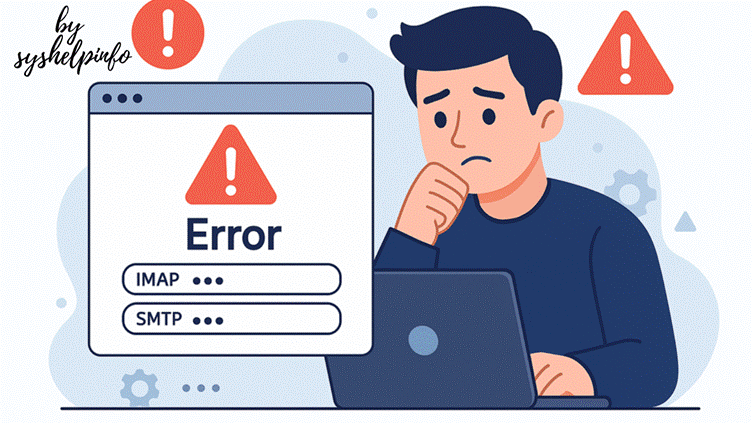
- Wrong password messages First verify your password by logging into your email provider’s webmail. You can find the addresses in our guide to webmail.
- Make sure you’ve entered the correct IMAP/SMTP server names and ports.
- Please check your internet connection and make sure your app is on the most current version.
- Authentication problems If you have two-factor authentication enabled, ensure that you successfully authenticate by verifying either through a password/name or other specified steps.
If you still experience issues, visit Microsoft’s support pages or your email service provider’s support guides.
Wrap Up
Configuring your email account on the Outlook mobile app is an easy task that will take just a few minutes. No matter if you’re working from the trailhead on the mobile app or your office on the desktop version, following the steps outlined above will have you sending and receiving emails in a jiffy. If you do need to configure server settings manually, make sure you use the right ones and never share your login credentials. Get the most out of Outlook With Outlook, you’ll keep everything that’s important to you together—all your email, calendar, and contacts in one convenient location.