
Removing or Deleting an email account from Android phone is a routine procedure whether you’re changing accounts, selling your phone, or just want to clean up your digital life. This step-by-step guide will take you through the whole process, from why you would remove an account to step-by-step directions for every major email provider and version of Android Phone.
Table of Contents
Why Remove an Email Account from Android Phone ?
There are several reasons you might want to remove an email account from your Android Phone .
⦁ Switching to a new email provider and no longer needing the old account.
⦁ Selling or giving away your phone and wanting to protect your privacy.
⦁ Troubleshooting sync issues or app errors.
⦁ Reducing notifications and distractions by streamlining your accounts.
⦁ Improving device performance by limiting background sync.
No matter your reason, the process is straightforward and, importantly, removing an account from your device does not delete the account itself. You can still access your email from a web browser or another device.
What Happens When You Remove an Email Account From Android Phone
⦁ All emails, contacts, and other data associated with the account are removed from your device. This includes synced calendars, notes, and app data.
⦁ You will be signed out of all apps and services using that account (like Gmail, YouTube, Google Drive, etc., if it’s a Google account).
⦁ The account itself remains active. You can add it back to your device or access it elsewhere at any time.
Preparation : Things to Consider Before Removing an Account From Android Phone
⦁ Backup important data : If you have important emails, contacts, or files stored locally, make sure to back them up.
⦁ Verify device restrictions : Certain devices must have at least one Google account to operate normally (for system updates, access to Play Store, etc.).
⦁ Know your passwords : You’ll want to use your account credentials to re-add the account or access it elsewhere.
Step-by-Step Guide: Removing an Email Account from Android Phone
Method 1: Remove a Google (Gmail) Account via Device Settings From Android Phone .
This is the most common method, and works for all email accounts added to your device—not just Gmail.
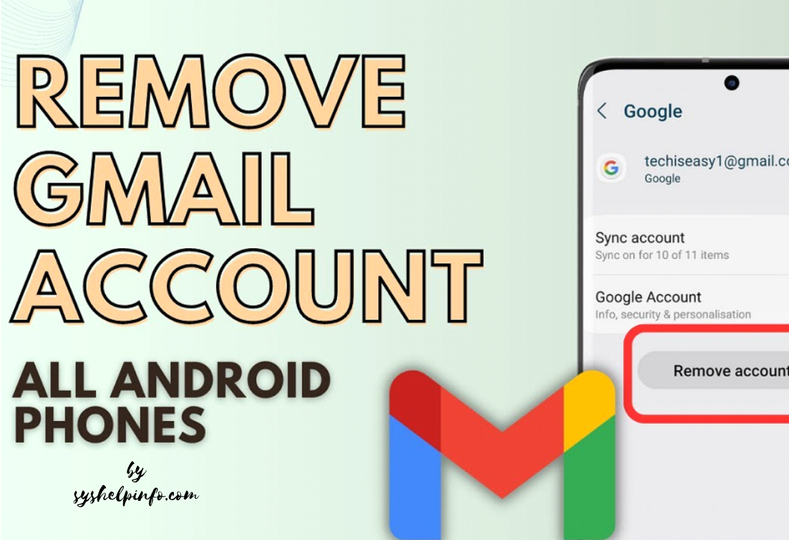
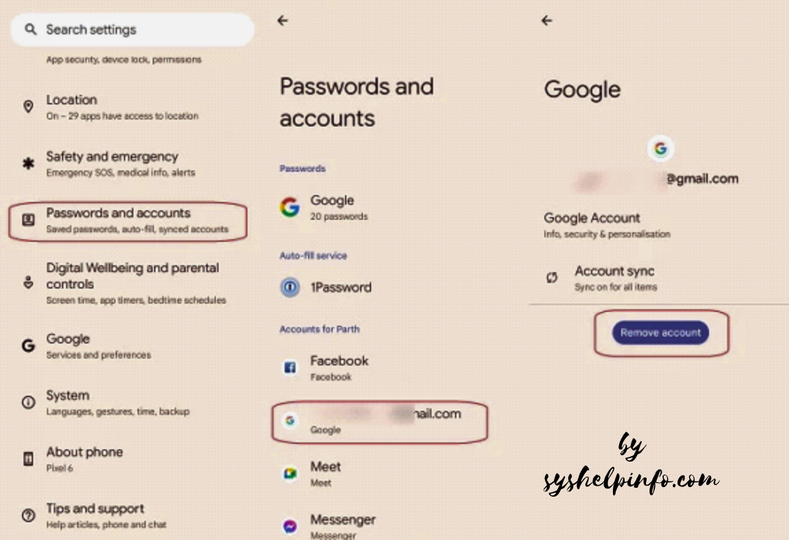
⦁ Open the Settings app on your Android device.
⦁ Scroll down and tap on Accounts, Users & Accounts, or Passwords & Accounts (the exact name may vary by device).
⦁ Under “Accounts,” you’ll find a list of all accounts associated with your device.
⦁ Tap the email account that you would like to delete. With Google accounts, it will typically read “Google” with your email address below.
⦁ Tap Remove account. On other devices, you might have to tap a three-dot menu or “More” first.
⦁ Tap your decision. You might be asked to enter your device PIN, password, or pattern for security.
Note: If you have only a single Google account on your device, uninstalling it might need a factory reset for system stability.
Method 2: Delete an Email Account using the Gmail App on Android Phone .
If you work with your emails using the Gmail app, you can delete accounts from the app directly:
⦁ Launch the Gmail app on your Android phone.
⦁ Tap your profile picture at the top right corner.
⦁ Tap Manage accounts on this device.
⦁ Choose the account you would like to delete.
⦁ Press Remove account and confirm.
This deletes the account from your Gmail app and all other Google apps on your device, but not off Google’s servers.
Method 3: Delete Non-Google Email Accounts (Yahoo, Outlook, etc.) From Android Phone .
If you have a standalone email app (such as Samsung Email, Outlook, or mail.com) :
⦁ Open the email app (for example, Samsung Email, Outlook, mail.com).
⦁ Press the menu icon (usually three bars or dots).
⦁ Go to Accounts or Settings.
⦁ Tap the email account you want to delete.
⦁ Tap Remove account or Delete account and then confirm.
The process will differ slightly between apps, but it works similarly on most major email providers.
Special Cases and Troubleshooting On Android Phone ?

What if “Remove Account” is Grayed Out or Missing ?
⦁ Device administrator settings: Some accounts (especially work or school accounts) have device admin privileges. Go to Settings > Security > Device admin apps and disable admin rights for the account, then try again.
⦁ Factory reset: If you’re unable to remove the account and are selling or giving away your phone, a factory reset will erase all data and accounts.
⦁ Multiple users/profiles: If your device has multiple user profiles, make sure you’re logged into the correct one before attempting to remove the account.
Removing Only Email (Not Entire Account)
⦁ Android doesn’t allow you to sign out of Gmail without removing the entire Google account from the device. If you want to keep other Google services active, consider disabling Gmail notifications or using a different email app.
Frequently Asked Questions
Will removing my account delete my emails?
⦁ No, your emails remain on the server and can be accessed from other devices or web browsers.
Can I add the account back later?
⦁ Yes, you can re-add the account at any time via Settings or the email app.
Does this sign me out of all Google services?
⦁ Yes, for Google accounts, you’ll be signed out of all Google apps on the device.
What about contacts and calendar events?
⦁ All synced data from the account will be removed from the device, but not from the cloud.
Is this the same as deleting my Google account?
⦁ No, removing the account from your device does not delete the account itself.
Security Tips After Removing an Account
⦁ Change your password if you’re concerned about unauthorized access.
⦁ Remove device access from your Google or email account settings online.
⦁ Factory reset your device if you’re passing it on to someone else.
Conclusion
Removing an email account from your Android phone is a simple but important process for managing your device and protecting your privacy. Whether you’re switching accounts, troubleshooting, or preparing your phone for a new owner, following the steps above will ensure your data is safe and your device is organized.
If you ever need to access your emails again, simply add the account back to your device. For most users, this process takes only a few minutes—and gives you full control over which accounts are active on your Android phone.
Quick Reference: Steps to Remove an Email Account from Android Phone
| Step | Action |
| 1 | Open Settings |
| 2 | Tap Accounts or Users & Accounts |
| 3 | Select the account to remove |
| 4 | Tap Remove Account |
| 5 | Confirm removal |
For Gmail :
Open Gmail app → Tap profile picture → Manage accounts on this device → Select account → Remove account.
For other email apps:
Open app → Menu → Settings/Accounts → Select account → Remove/Delete account.
By following these steps, you can confidently manage your email accounts and keep your Android device secure and clutter-free.
Also Checkout This Blog in Case If you want to remove an email in any Iphone/Ipad devices