

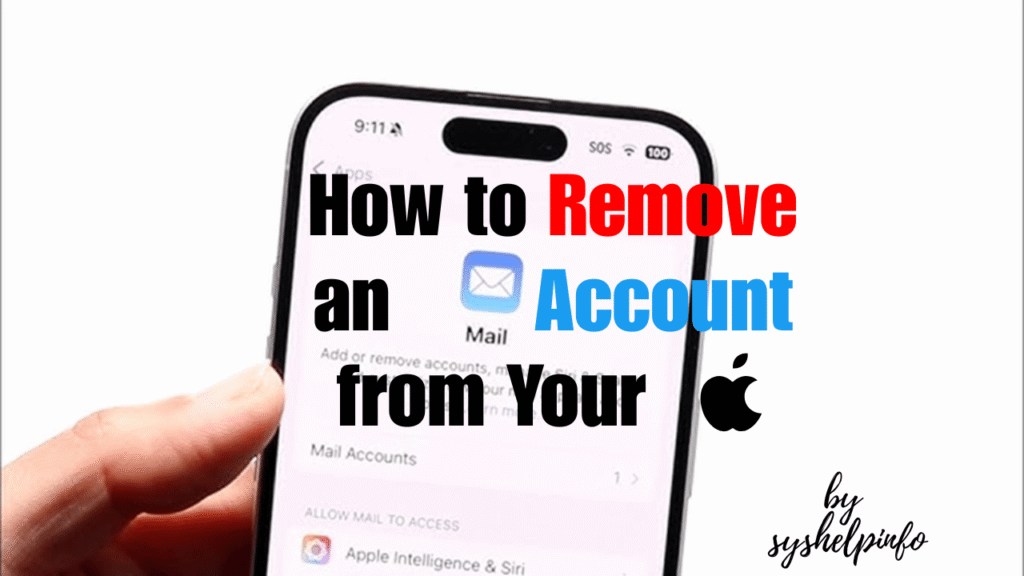
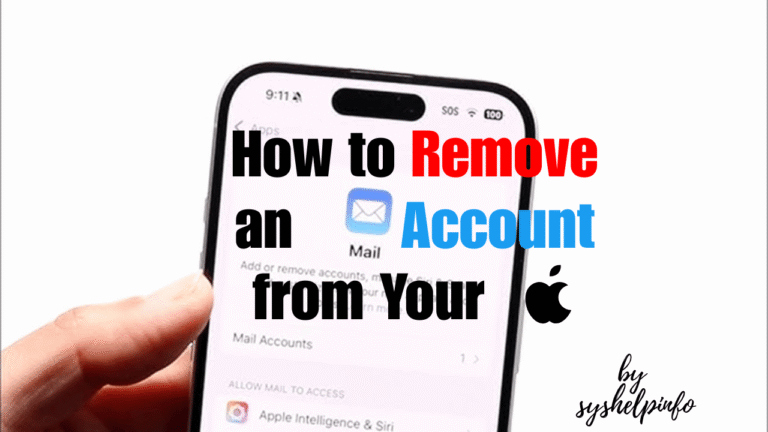
iPhone & iPad are very Easy to use devices and Removing the Email Account is not a big Task . If you know how to use any iPhone or an iPad You Know how to do it but in case if you are not able to do it then this Guide will help you and assist you in an simple step by step process.
Mastering your digital life almost always means keeping your devices tidy. One common thing you need to do is remove an email account from your iPhone. Perhaps you’re switching jobs, pruning dormant accounts, or troubleshooting mail issues. This ultimate guide will walk you through the process step by step .
Table of Contents
Why Remove an Email Account from Your iPhone?
There are several reasons you might want to remove an email account :
- No longer using the account (e.g., a work or school email)
- Switching email providers or consolidating accounts
- Troubleshooting persistent mail sync or notification issues
- Reducing digital clutter and streamlining your inbox
It’s worth mentioning that you don’t delete an email account if you remove it from your iPhone—just the connection to your phone. You can still add it back if you change your mind or use it on some other device or web browser.
Step by Step: How to Remove an Email Account from Your iPhone
These are the steps to delete any email account from your iPhone. The steps are more related to all iOS versions, including iOS 16, 17, and later models.
1. Open the Settings App
- Find the Settings app on your iPhone home screen (gray gear icon) and tap to open it.
2. Go to Mail Settings
- Scroll down and tap on Mail.
- In some older versions of iOS, this will read Mail, Contacts, Calendars568.
3. Tap on Accounts
- In the Mail settings, tap Accounts. On this screen, you’ll find a list of all the email accounts that are already configured on your device568.
4. Choose the Account to Delete
- Tap on the email account you would like to delete. Make sure you’ve chosen the right one, particularly if you have several accounts5678.
5. Tap ‘Delete Account’
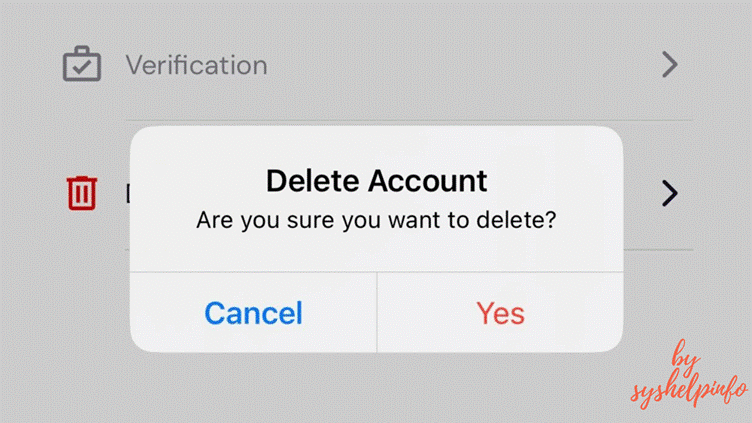
- Go to the bottom of the account’s settings page and tap on the red Delete Account button.
6. Confirm Deletion
- You will see a confirmation popup. Tap Delete from My iPhone to complete the deletion.
Your iPhone will delete all emails, contacts, and calendar entries related to that account after these actions.
What Happens After Deleting an Email Account?
- All synced emails, contacts, and calendars from that account will be deleted from your iPhone.
- You won’t get new emails from that account on your iPhone.
- The account is still active elsewhere—you may still access it through webmail or another device.
- You can restore the account again if you change your mind from the same Settings menu at any time.
Special Considerations
Removing iCloud or Apple ID Email
- If you try to remove your primary iCloud account (the one used for Apple ID), you’ll need to sign out of iCloud, which affects other services like Find My iPhone, iCloud Drive, and Photos.
- For most users, it’s best to only remove secondary email accounts (Gmail, Outlook, Yahoo, etc.) unless you’re switching Apple IDs.
Data Backup
- Before deleting, ensure you’ve backed up any important emails, contacts, or calendar events you need from that account.
Shared Devices
- If you share your iPhone with others, removing an email account will affect all users on that device.
Frequently Asked Questions

Will deleting an email account delete my emails?
- No, deleting an account from your iPhone only removes the emails from your device. The emails remain on the email provider’s servers and can be accessed from other devices or webmail.
Can I add the account back later?
- Yes, you can re-add the email account at any time through Settings > Mail > Accounts > Add Account.
Does this remove my Apple ID?
- No, unless you specifically remove your iCloud account. Deleting a regular email account (like Gmail or Outlook) does not affect your Apple ID.
What if I don’t see the Mail app?
- If you’ve deleted or hidden the Mail app, you can restore it from the App Library or the App Store.
Troubleshooting: If You Can’t Remove an Email Account
- Restart your iPhone and try again.
- Update iOS to the latest version.
- For corporate or school accounts set up via profiles, you may need to remove the profile under Settings > General > VPN & Device Management.
Tips for Managing Email Accounts on iPhone
- Regularly review your accounts to keep your device organized.
- Use Mail settings to customize notifications or fetch frequency for each account.
- For privacy, always remove accounts from devices you no longer use or plan to sell.
Summary Table: Removing an Email Account
| Step | Action |
| 1 | Open Settings |
| 2 | Tap Mail (or Mail, Contacts, Calendars) |
| 3 | Tap Accounts |
| 4 | Select the account to remove |
| 5 | Tap Delete Account |
| 6 | Confirm deletion |
Final Thoughts
Deleting an email account from your iPhone is a speedy and safe method of cleaning out your phone, maintaining your privacy, and resolving mail problems. The procedure is completely reversible, so you are free to simply add the account again if required. For most people, this process takes under one minute and does not need any technical knowledge.
If you need help with a specific email provider or encounter any issues, let me know in the comments—I’m here to help!


One thought on “How to Remove an Email Account from Your iPhone & iPad : A Complete Right Guide 2025”